User Guide
Introduction
ModuleMateFinder (MMF) is a desktop application for managing contacts and finding ModuleMates. You can easily keep track of what modules your friends are/will be taking, so you can contact them to form groups.
If you can type fast, you can get your contact management tasks done fast, but even if you are not a slow typist – fret not, you can still use it!
Shortcut to Specific Features
This section lists down all the features available in MMF. You can click on any of them to jump to the features.
- Help
- List
- Add Contact
- Add Module(s) to Contact
- Comment on a Contact
- Status of a Contact
- Copy
- Clear All Data
- Clear all Modules from Contact
- Delete Contact
- Delete Module(s) from Contact
- Edit
- Find
- Filter
- Sort
- Archive a Contact
- Unarchive a Contact
- Switch between default and archived contact list
- Undo
- Redo
- Exit
Quick start
-
Ensure you have Java
11or above installed in your Computer. -
Download the latest
ModuleMateFinder.jarfrom here. -
Copy the file to the folder you want to use as the home folder for your ModuleMateFinder.
-
Double-click the file to start the app. The GUI similar to the below should appear in a few seconds. Note how the app contains some sample data.
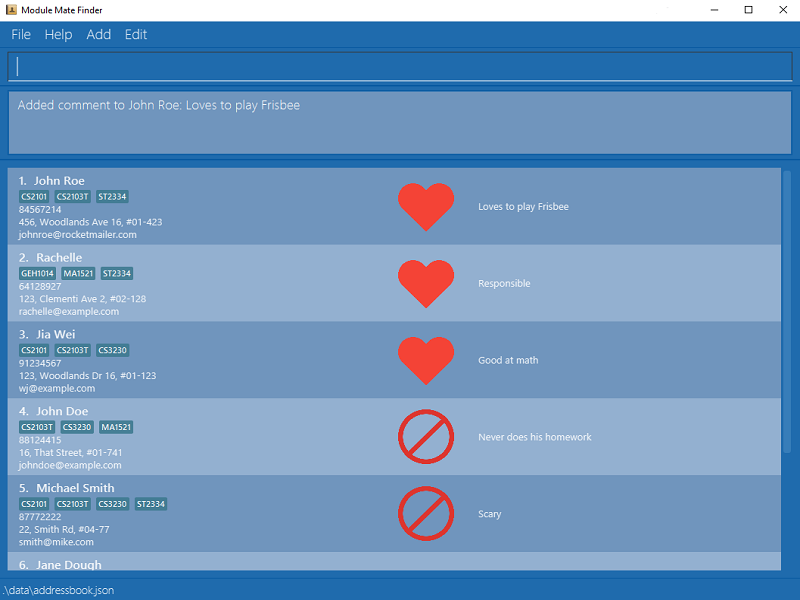
-
Type the command in the command box and press Enter to execute it. e.g. typing
helpand pressing Enter will open the help window.
Some example commands you can try:-
list: Lists all contacts. -
addn/John Doe p/98765432 e/johnd@example.com a/John street, block 123, #01-01: Adds a contact namedJohn Doeto ModuleMateFinder. -
delete3: Deletes the 3rd contact shown in the current list. -
clear: Deletes all contacts. (You are recommended to clear all placeholder contacts before you start using ModuleMateFinder) -
exit: Exits the app.
-
-
Refer to the Features below for details of each command.
Features
ModuleMateFinder is a desktop app that allows contacts to find people taking the same modules as them, easily and efficiently
 Notes about the command format:
-
Words in
UPPER_CASEare the parameters to be supplied by the user.
e.g. inadd n/NAME p/PHONE_NUMBER e/EMAIL a/ADDRESS,NAME,PHONE_NUMBER,EMAILandADDRESSare parameters which cannot be left empty. -
Items in square brackets are optional.
e.g.n/NAME [m/MODULE]can be used asn/John Doe m/CS2103or asn/John Doe. -
Items with
… after them can be used multiple times including zero times.
e.g.[m/MODULE]…can be used asm/CS2103,m/CS2103 m/CS2100etc. -
Parameters do not have to be in order.
e.g. if the command specifiesadd n/NAME p/PHONE_NUMBER e/EMAIL a/ADDRESS, you can do it in any order. -
If a parameter is expected only once in the command but you specified it multiple times, only the last occurrence of the parameter will be taken.
e.g. if you specifyp/12341234 p/56785678, onlyp/56785678will be taken. -
Extraneous parameters for commands that do not take in parameters (such as
help,list,exitandclear) will be ignored.
e.g. if the command specifieshelp 123, it will be interpreted ashelp. -
Below is a table depicting the parameters used in ModuleMateFinder and their respective constraints
| Parameter | Constraint | Example |
|---|---|---|
| Index | Index must be a positive integer and be less than 2,147,483,647 | 1, 2, 3 |
| Name | Names should only contain alphanumeric characters and spaces | Jerry Lee |
| Phone | Phone number must be at least 3 digits short, and at most 25 digits long | 82309 1234 |
| Address | Addresses must be within 60 characters long | 57 Kent Ridge Drive |
Emails must be of the format local-part@domain
|
berniceYu@email.com | |
| Module | Module names have 2-3 letters prefix followed by 4 digits and at most two optional letters | CS1101S |
| Status | Status must either be favourite, blacklist or blank |
favourite |
| Comment | Comments must be within 60 characters long | Good at teamwork |
| Format | Format must either be default, csv or json
|
csv |
Viewing help : help
Shows a message explaining how to access the help page.

Format: help
Listing all contacts : list
Shows a list of all contacts in ModuleMateFinder.
Format: list
Adding a Contact : add
Adds a contact to ModuleMateFinder.
Format: add n/NAME p/PHONE_NUMBER e/EMAIL a/ADDRESS
Examples:
add n/Bob p/87654321 e/bob@u.nus.edu a/123, Clementi Ave 16, #01-321
Additionally, if you were to simply use add, it would open up a new window to allow you to systematically add a new contact, with multiple additional fields that would normally require the use of other commands.
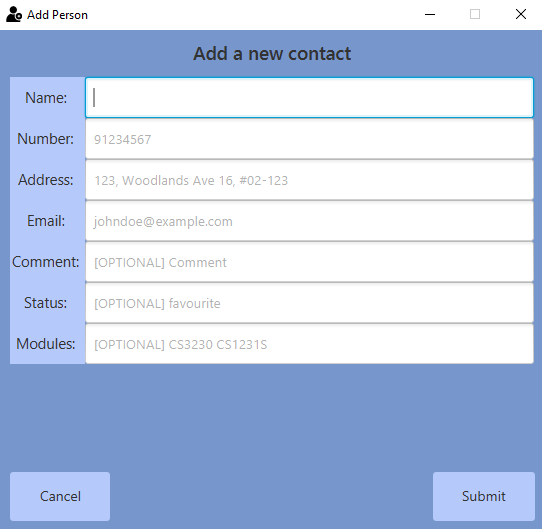
Then, simply fill up the fields as guided in the window. You can then press the ENTER key to submit the fields when complete, or press the Submit button.
Extra information about this command:
- Adding duplicate names is not allowed as most people will not have the exact same name.
- Addresses must be within 60 characters long
- Phone number must be at least 3 digits short, and at most 25 digits long.
- Emails must be of the format
local-part@domain. For example, a valid email you ise@e.sg, invalid email ise@e.s - When in
archives, theaddfunctionality is disabled. - Using the popup window
add, you have the benefit of executing multiple commands (i.e.comment,status, andaddmodules) at once.
Adding Module(s) to a Contact : addmodules
Adds module(s) to an existing contact
Format: addmodules INDEX m/MODULE [m/MODULE]...
- Adds modules represented by each module code
m/MODULEto a contact at IndexINDEX - The
INDEXrefers to the Index number shown in the displayed contact list. - The
INDEXmust be a positive integer 1, 2, 3, … and must exist in the displayed contact list.
Examples:
-
addmodules 2 m/CS1231Adds a module,CS1231to the 2nd contact -
addmodules 2 m/CS1231 m/CS2103TAdds two modules,CS1231andCS2103Tto the 2nd contact
Accepted Module Formats:
- Module names have 2-3 letters prefix followed by 4 digits and at most two optional letters.
- Examples of valid Modules:
CS1231,CS2103T,NUR1107B,MUT2022
See below for an example image of a person with modules
Adding a comment for a contact : comment
Adds a comment for the specified contact in ModuleMateFinder.
Format: comment INDEX c/COMMENT
- Adds a comment for the contact at the specified
INDEX. - A comment must be within 60 characters long
- The
INDEXrefers to the Index number shown in the displayed contact list. - The
INDEXmust be a positive integer 1, 2, 3, … and must exist in the displayed contact list. - Any existing comments for a contact will be overwritten by the new input.
- If used with an empty comment (i.e.
comment 1 c/), the command will be treated as a delete command and removes the comment of the specified contact.
Examples:
-
comment 2 c/Good at math.will add the commentGood at mathto the 2nd contact. -
comment 3 c/will delete the comment for the 3rd contact.
See below for an example image of a person with a comment
Adding a status for a contact : status
Sets a contact’s status as favourite or blacklisted.
Format: status INDEX s/STATUS
- Gives a status to the contact at specified
INDEX - Status can either be a
blacklistorfavourite, a contact can have no status tagged. - The
INDEXrefers to the Index number shown in the displayed contact list. - The
INDEXmust be a positive integer 1, 2, 3, … and must exist in the displayed contact list. - If used with an empty status field (i.e.
status 1 s/), the command will be treated as a delete command and removes the status of the specified contact.
Examples:
-
status 1 s/blacklisttags the 1st contact in ModuleMateFinder as blacklisted. -
status 2 s/favouritetags the 2nd contact in ModuleMateFinder as favourite. -
status 2 s/will untag the 2nd contact in ModuleMateFinder, leaving them with noStatus
Annotated image of what a contact with Status, Module, and Comment

Copy contacts in list : copy
Easily copy a contact’s information into your clipboard, for easy pasting into a communication app of your choice. For example, you can copy a contact’s email and then paste it into your email client.
Format: copy [INDEX] [n/] [p/] [e/] [a/] [s/] [m/] [c/] [f/]
- Copy contacts using specified field names.
- If no fields are specified, all fields will be copied.
- Choose
INDEXto copy a specific contact. - The
INDEXrefers to the Index number shown in the displayed contact list. - The
INDEXmust be a positive integer 1, 2, 3, … and must exist in the displayed contact list. - If no
INDEXis specified, all contacts will be copied. - Order of field names determines the order of attributes in the output.
- Choice of format is default, csv and json.
- If no format is specified, default format will be used.
| Format | Description | Example |
|---|---|---|
| default | Displays attributes separated by a newline | mary 91282770 coast residences |
| csv | Displays attributes separated by a delimiter |
|
mary | 91282770 | coast residences |
| json | Displays information in JSON format | { “name” : “mary”, “phone” : “91282270”, “address” : “coast residences” } |
Examples:
-
copy 1 n/ p/ e/ f/jsonwill copy name, phone and email of first contact in JSON format. -
copy f/csvwill copy the entire list in csv format. -
copy 1 e/will copy the email of the first contact. You may then go to your mailing app and email the contact!
Clearing all entries : clear
Clears all entries from the contact list.
Format: clear
Examples:
-
clearwipes all data from ModuleMateFinder.
 Caution:
Typing this command will cause you to lose all data. Use with caution!
Caution:
Typing this command will cause you to lose all data. Use with caution!
Clearing all modules for a contact : clearmodules
Clears all modules based on the given Index from ModuleMateFinder.
Format: clearmodules INDEX
- Deletes all modules from the contact at the specified
INDEX. - The
INDEXrefers to the Index number shown in the displayed contact list. - The
INDEXmust be a positive integer 1, 2, 3, … and must exist in the displayed contact list.
Examples:
-
clearmodules 5wipes all modules for contact in Index 5.
Deleting a contact : delete
Deletes the specified contact from ModuleMateFinder.
Format: delete INDEX
- Deletes the contact at the specified
INDEX. - The
INDEXrefers to the Index number shown in the displayed contact list. - The
INDEXmust be a positive integer 1, 2, 3, … and must exist in the displayed contact list.
Examples:
-
listfollowed bydelete 2deletes the 2nd contact in ModuleMateFinder. -
find Betsyfollowed bydelete 1deletes the 1st contact in the results of thefindcommand.
Deleting a module : deletemodules
Deletes the specified module from contact in ModuleMateFinder.
Format: deletemodules INDEX m/MODULE [m/MODULE]...
- Deletes modules for the contact at the specified
INDEX. - The Index refers to the Index number shown in the displayed contact list.
- The Index must be a positive integer 1, 2, 3, …
- The modules will be deleted only if the contact has the all the specified modules.
- One or more modules must be specified.
Examples:
-
listfollowed bydeletemodules 2 m/CS3230deletes the module CS3230 for the 2nd contact in ModuleMateFinder. -
find Betsyfollowed bydeletemodules 1 m/CS2102 m/CS2040Sdeletes the specified modules for the 1st contact in the results of thefindcommand. -
deletemodules 1 m/CS2102 m/CS2040Swill fail when user has CS2102 but does not have CS2040S. -
filter cs2103tfollowed bydeletemodules 1 m/cs2103twill cause the person to not be displayed in filtered list.
Editing a contact : edit
Edits an existing contact in ModuleMateFinder.
Format: edit INDEX [n/NAME] [p/PHONE] [e/EMAIL] [a/ADDRESS]…
- Edits the contact at the specified
INDEX. The Index refers to the Index number shown in the displayed contact list. - The
INDEXrefers to the Index number shown in the displayed contact list. - The
INDEXmust be a positive integer 1, 2, 3, … and must exist in the displayed contact list. - At least one of the optional fields must be provided.
- Existing values will be updated to the input values.
-
Modules cannot be edited through the
editcommand.- Instead, use
deletemodulesto remove the modules first, thenaddmodulesto add the modules to a contact.
- Instead, use
Additionally, if one were to simply use edit, it would open up a new window to allow you to systematically edit a chosen contact
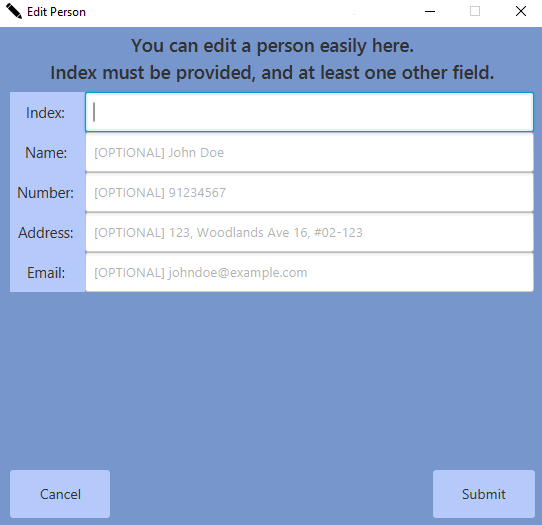
Then, simply fill up the fields as guided in the window.
Examples:
-
edit 1 p/91234567 e/johndoe@example.comEdits the phone number and email address of the 1st contact to be91234567andjohndoe@example.comrespectively. -
edit 5 n/Bob a/Kent Ridge DriveEdits the name and address of the 5th contact to beBobandKent Ridge Driverespectively.
Important:
When in the archives, you will not be able to edit a person’s name. In general, a person who is archived is assumed have correct details except for details that may change over time (e.g. phone number, email, address)
Locating a contact: find
Finds a contact by the given keyword.
Format: find KEYWORD [MORE_KEYWORDS]
- The search is case-insensitive. e.g.
hanswill matchHans - Only the given keyword is searched
- Words not matching the given keyword is ignored
- Only full keywords will be matched e.g.
Polwill not matchPolice - contacts matching at least one keyword will be returned (i.e.
ORsearch). e.g.Hans Bowill returnHans Gruber,Bo Yang
Examples:
-
find JohnreturnsjohnandJohn Doe -
find alex davidreturnsAlex Yeoh,David Li
Locating a contact by their module: filter
Finds a contact by the given module code.
Format: filter MODULE
- The search is key insensitive
- Only the given keyword is searched
- Words not matching the given keyword is ignored
- Valid module code have 2-3 prefix letters followed by 4 digits and one optional letter.
Examples:
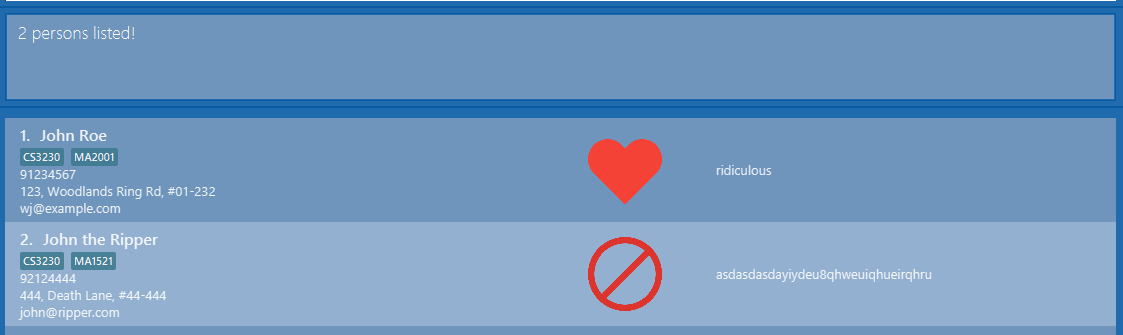
-
filter CS3230will find all contacts with the module CS3230
Sorting contacts in list: sort
Sort all people within contact list.
Format: sort [n/ASC|DESC] [p/ASC|DESC] [e/ASC|DESC] [a/ASC|DESC] [s/ASC|DESC] [m/ASC|DESC] [c/ASC|DESC]
- Sorts list with specified field(s). For any two contacts, latter fields will only be considered if preceding fields are equal.
- Order of fields is important and there must be at least one field.
- Parameters determine whether field is sorted on ascending or descending order.
- Parameters are optional. If included, it must be either
asc,descor an empty string"". - Empty string
""is ascending by default. - Parameters are case-insensitive.
| Field | Prefix | Specification of sort | Example (Ascending) |
|---|---|---|---|
| Name | n/ |
Sorted lexicographically |
Alice is followed by ‘Bob’ |
| Phone | p/ |
Sorted numerically |
1 is followed by 9
|
e/ |
Sorted lexicographically |
alice@gmail.com is followed by bob@gmail.com
|
|
| Address | a/ |
Sorted lexicographically |
apple residences is followed by banana residences
|
| Status | s/ |
Sorted lexicographically |
"" is followed by blacklist is followed by favourite
|
| Module | m/ |
Sorted numerically by number of modules | A contact with 1 modules is followed by contact with 5 modules |
| Comment | c/ |
Sorted numerically by length of comment |
a is followed by aaaaaaaaaaaaaaaaaa
|
Examples:
-
sort n/asc p/descwill sort the list by name in ascending order first. If two contacts have the same name, then sort by phone number in descending order. -
sort n/will sort the list by name in ascending order by default.
Archiving contacts: archive
You can archive contacts into a separate contact list. Archiving a contact can keep ModuleMateFinder more organised by hiding individuals (such as those whom have graduated) away from your contact list.
format: archive INDEX
- Archives the contact at the specified
INDEX. - The
INDEXrefers to the Index number shown in the displayed contact list. - The
INDEXmust be a positive integer 1, 2, 3, … and must exist in the displayed contact list.
Examples:
-
listfollowed byarchive 2archives the 2nd contact in ModuleMateFinder. -
find Betsyfollowed byarchive 1archives the 1st contact in the results of thefindcommand.
Alert:
You can only use this command when in the default contact list. Otherwise, you will get an error that tells you to use the correct command
Unarchiving contacts: unarchive
You can also bring contacts back from the archives if necessary.
format: unarchive INDEX
-
Unarchives the contact at the specified
INDEX. - The
INDEXrefers to the Index number shown in the displayed contact list. - The
INDEXmust be a positive integer 1, 2, 3, … and must exist in the displayed contact list.
Examples:
-
listfollowed byunarchive 5unarchives the 5th contact in ModuleMateFinder. -
find Lizzyfollowed byunarchive 1unarchives the 1st contact in the results of thefindcommand.
Alert:
You can only use this command when in the archives contact list. Otherwise, you will get an error that tells you to use the correct command
Switching between the default and archived contact list: switch
Switch between the default contact list or the archived contact list in ModuleMateFinder.
format: switch
- Alternatively, you may use F10 or
File -> Switch...in the menu to perform the switch
Examples:
-
switchchanges the view to the other contact list. If you are inDefaultmode, then it changes toArchives, and vice-versa. - Pressing F10 on your keyboard or
File -> Switch...in the menu also does the same as the above.
Undo a command : undo
Undoes the previously executed command.
Format: undo
Examples:
-
delete 5
undo
After deleting a contact at Index 5, undo will reverse the delete command and bring the contact back at Index 5.
See below for a list of commands that undo applies to
Redo a command : redo
Restores most recent command that was undone using undo. If you use a command that is not undo or redo,
while in the midst of undoing, there will no longer be commands to redo.
Format: redo
Examples:
-
edit 3 n/Adam
undo
redo
After editing a contact’s name at Index 3 from George to Adam and using undo to reverse the contact’s name back to George, using redo will restore the contact’s name back to Adam.
Commands that you can undo/redo:
-
addafter successfully adding a contact addmodulescommentstatusclearclearmodulesdeletedeletemodulessortswitcharchiveunarchive-
undo/redoi.e. you canundoaredo, and you canredoanundo
Exiting the program : exit
Exits the program.
Format: exit
Saving the data
ModuleMateFinder data are saved in the hard disk automatically after any command that changes the data. There is no need to save manually.
Editing the data file
ModuleMateFinder data are saved as JSON files [JAR file location]/data/addressbook.json and [JAR file location]/data/archivedAddressBook.json. If you are an advanced user, you are welcome to update data directly by editing the respective data files.
Caution:
If your changes to the data file makes its format invalid, ModuleMateFinder will discard all data and start with an empty data file at the next run.
FAQ
Q: Are all modules offered by NUS available in ModuleMateFinder?
A: As long as the module offered can be found in NUSMods, it will be available on ModuleMateFinder as well.
Q: What is the point of archiving?
A: You may have seniors who have graduated, but you would like to seek advise from for certain modules. Archiving helps you to organise your contacts as well!
Command summary
| Action | Format | Examples |
|---|---|---|
| Help | help |
help |
| List | list |
list |
| Add Contact | add n/NAME p/PHONE_NUMBER e/EMAIL a/ADDRESS |
add n/Bob p/87654321 e/bob@u.nus.edu |
| Add Module(s) | addmodules INDEX m/MODULE |
addmodules 4 m/CS2100 |
| Comment on a Contact | comment INDEX c/COMMENT |
comment 1 c/Good at math |
| Status of a Contact | status INDEX s/STATUS |
status 2 s/favourite |
| Copy | copy [INDEX] [n/] [p/] [e/] [a/] [s/] [m/] [c/] [f/] |
copy 3 n/ e/ f/csv |
| Clear All Data | clear |
clear |
| Clear Module(s) From Contact | clearmodules INDEX |
clearmodules 3 |
| Delete Contact | delete INDEX |
delete 3 |
| Delete Module(s) from Contact | deletemodules INDEX m/MODULE [m/MODULE]... |
deletemodules 1 m/CS1231 m/CS2102 |
| Edit | edit INDEX [n/NAME] [p/PHONE] [e/EMAIL] [a/ADDRESS] |
edit 1 n/Alice |
| Find | find KEYWORD [MORE_KEYWORDS] |
find James Jake |
| Filter | filter MODULE |
filter CS3230 |
| Sort | sort [n/ASC] [p/ASC] [e/ASC] [a/ASC] [s/ASC] [m/ASC] [c/ASC] |
sort n/asc p/desc a/ |
| Archive a Contact | archive INDEX |
archive 1 |
| Unarchive Contact | unarchive INDEX |
unarchive 1 |
| Switch between default and archived contact list | switch |
switch |
| Undo | undo |
undo |
| Redo | redo |
redo |
| Exit | exit |
exit |